Special integration updates being finalized for Cartus members

We are in the midst of completing a new integration for Cartus members to make it easier and more efficient to use ReloSpec to manage their Cartus referrals.

What does it entail?

  1. With BROKER CENTER – we have created a copy and paste integration that no longer requires a third-party integration.
  2. With LEAD ROUTER – we are finalizing a LEADROUTER API integration that will help all LEADROUTER users automatically sync leads into ReloSpec, as well as send updates back to LEADROUTER (also updating BROKER CENTER).

This way no matter where you prefer to do your work, ReloSpec, LeadRouter, or Broker Center you are able to see real-time updates.   This is a game changer as it relates to efficiency.

Our CARTUS integration solution will allow users to use one, the other or both depending on your needs.   The BROKER CENTER portion is completed, and the LEADROUTER API should be completed this quarter.   Let us know if you want to learn more about the solution.

This is ReloSpec’s continued commitment to providing the most effective and efficient relocation management system for our clients.

If you have any questions CONTACT US as we are here to serve you.

Will we see you in Seattle next week?

ReloSpec founder, Jim Evans, and ReloSpec Product Manager, Tom Demos, would like to get an opportunity to sit down with you next week at the RDC meetings in Seattle. Our team is arriving Tuesday afternoon and would love to sit down and hear your thoughts on ReloSpec; what you like and what else you would like to see.  The drinks and appetizers are on us.  We really just want to get a chance to meet you.

Please let us know if you are attending by clicking here

We look forward to seeing you in Seattle!

Constellation Real Estate Group acquires Baynet

CONSTELLATION WEB SOLUTIONS INC., DOING BUSINESS AS THE CONSTELLATION REAL ESTATE GROUP (CREG), A LEADING PROVIDER OF SCALABLE SAAS PRODUCTS IN THE REAL ESTATE INDUSTRY, ANNOUNCED TODAY THAT IT HAS ACQUIRED THE ASSETS OF BAYNET WORLD, INC. (BAYNET).BELLEVUE, WASH. (PRWEB) OCTOBER 02, 2018

Baynet, a pioneer in real estate and MLS technologies, was founded in 1994 and offers turn-key solutions, as well as custom websites, comprehensive CRM platforms, website management, IDX technology, and marketing solutions for real estate agents and brokerages.

The acquisition of Baynet further expands the Constellation Real Estate Group’s presence in an otherwise fragmented real estate technology market, providing sales and marketing solutions, transaction management, and back office software for over half of a million real estate agents, brokerages, and franchises across the U.S. and Canada.

“As real estate agents and brokers explore the right partners for their technology solutions, we are pleased to be able offer powerful front office and back office solutions through the Constellation Real Estate Group’s support, expertise, and technology,” said Scott Smith, President of Constellation Software Real Estate Group. “Baynet has a proven dedication to their products, while maintaining a strong focus on long-term customer relationships. We’re excited to welcome Baynet to the Constellation Real Estate Group.”

Acquiring Baynet aligns with CREG’s strategy of investing in vertical market solutions that benefit the real estate professionals that use them.

“Baynet’s mission is to simplify real estate technology and marketing for our customers and joining the Constellation Real Estate Group presents a powerful opportunity to leverage the experience of CREG to grow our products and better serve our customers,” said Joe Mizrahi, CEO of Baynet. “We’re thrilled to join the Constellation Real Estate Group and extend the value they bring to the real estate industry and our customers.”

Following the recent acquisition of Real Estate Digital (RED) in 2018 and Relocation Specialist (ReloSpec) in November 2017, Baynet marks Constellation Real Estate Group’s third new portfolio business in the past twelve months.


About:

The Constellation Real Estate Group

The Constellation Real Estate Group acquires and invests in real estate software brands that are committed to providing long-term solutions and partnerships with franchises, brokers, agents, MLSs, and associations. CREG provides a suite of market-leading technology solutions designed specifically for the real estate industry through its brands, which include: Market Leader, Constellation Web Solutions, Sharper Agent, Zurple, Z57, Diverse Solutions, Birdview, ReloSpec, Real Estate Digital, and now Baynet World, Inc. Over 500,000 real estate agents, teams, and brokerages across North America rely on CREG’s products and services to power, manage, and grow their businesses.
For more information, visit http://www.csiregroup.com

Baynet World, Inc.

Founded in 1994, Baynet World, Inc. has been a pioneer in real estate technology and MLS solutions. Today, Baynet keeps a portfolio of five families of services, including real estate websites, CRM platforms, marketing, IDX technology, and enterprise solutions. Baynet continues to innovate within the real estate industry with top-notch agent and broker productivity solutions. Based out of San Jose, CA, Baynet is headquartered in the heart of Silicon Valley and represents clients all over the globe.
For more information, visit http://www.baynet.com

New Feature: Add New Records with Defaults

Do you often find yourself clicking ADD NEW RECORD only to re-enter the same information repeatedly with other new records?  You can now save time by storing the default information and recalling it at the touch of a new button.

Here’s how:

  1. In the Client List page click ‘Add New (Classic)’.
  2. Enter the fields in sections for General Information, the Contact and the Referring Agent.
  3. Enter “Default1” in the Client Last Name field, and click ADD NEW RECORD.  (You may have a second default record in which you would enter “Default2” in the Client Last Name field.)

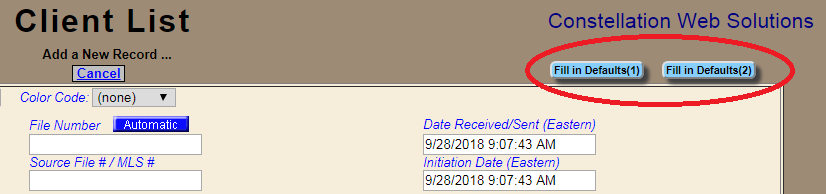
Once the default record(s) have been saved you’re all set.  When you want to use the default settings, click the ‘Add New (Classic)’ button, then click either the ‘Fill in Defaults(1)’ or the ‘Fill in Defaults(2)’ button to have the fields filled-in for you!

ReloSpec Tip: Agent updates

Occasionally we offer ‘ReloSpec Tips’ to help you use features you may not be familiar with.  Today we’re looking at the AGENTS page.

Ever make changes to an agent’s record in the AGENTS page such as Phone or Email, then realize those changes also need to be made in the Referrals table and the related Tasks?  There is an easy way to do that!

Open the AGENTS page using the ‘Other Options’ droplist.  Click the pencil, make your changes and click the button that now appears and is labeled “Refresh (Update) the Tasks & Referrals…”.  The button only appears after you click UPDATE CURRENT RECORD.

After clicking the button, ReloSpec will display the total number of records and fields updated with the agent information.  Now, the info in the Tasks and the Referrals tables will match what you have in the Agents table.


Custom Financial Report Video Now Available

Yesterday we announced upgrades for the DOWNLOAD button in the Client List page and for the ‘Custom Financial Report’.

There is now a video available.  Click here to view the video.

We appreciate your suggestions for updates and features.

Correction: DOWNLOAD button and Custom Financial Report

Today  you received an email blog regarding the DOWNLOAD button on the Client List and the report named ‘Custom Financial Report’.  There was an important part missing from Step 2.

Here is what should have been included.  The new text is in italics.

Want to get a fast, simple report?  Perhaps you want to drop the records you find into an Excel spreadsheet?  It’s as easy as 1, 2, 3

  1. You always start with using the SEARCH button in the Client List page to filter the records.
  2. Click the DOWNLOAD button to open the field selection page where you can select which fields you want included.  Next, click the green button labeled, “Generate a report using these fields…”.  That will display a grid with your filtered records and selected fields.
  3. Click the DOWNLOAD button on the grid display page to insert the results into a spreadsheet.

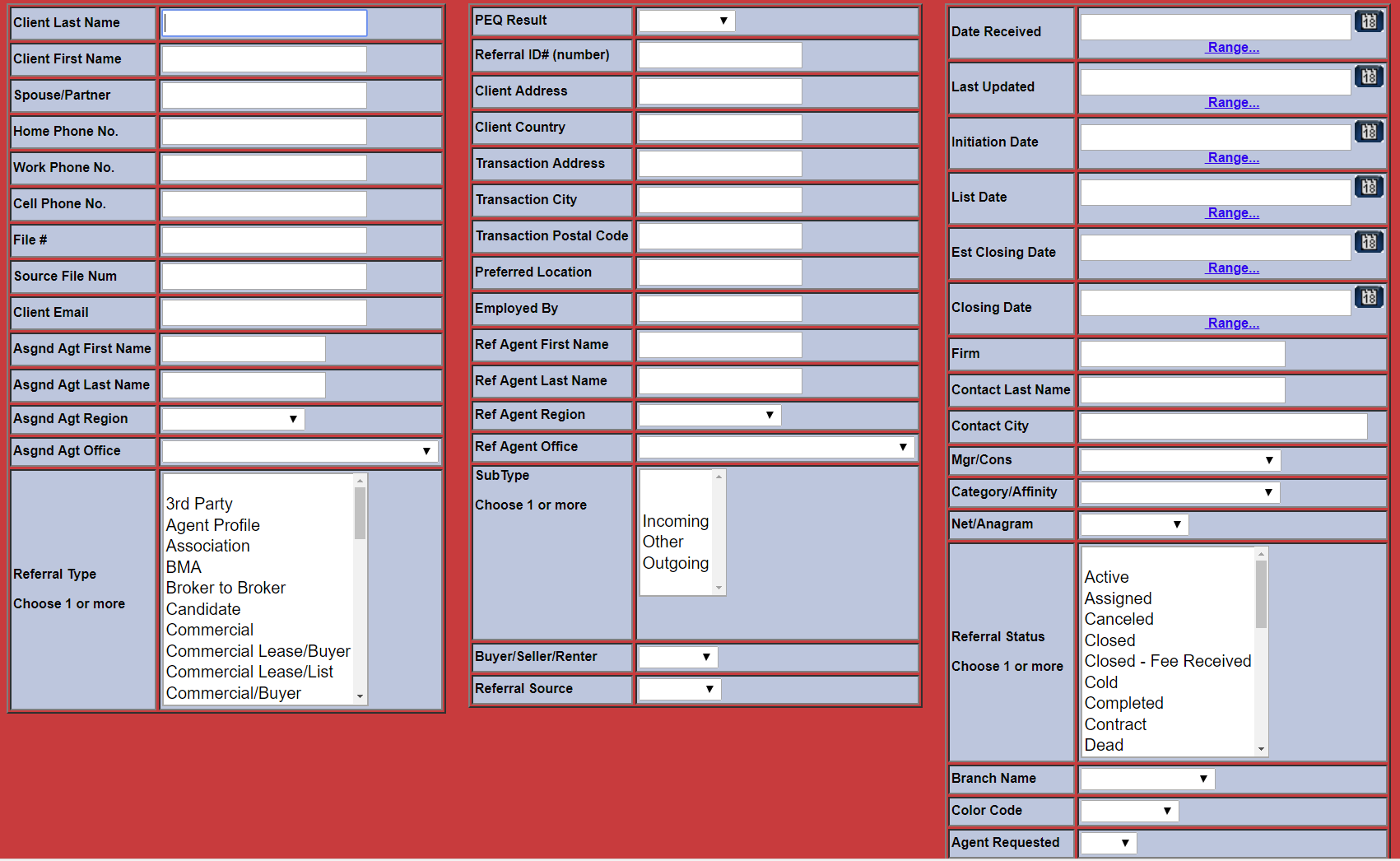
In addition, we have expanded the number of date fields used in the SEARCH page and included ‘Range’ links that allow you to use a pop-up calendar to select your Begin and End dates.  Here is what it now looks like:

All the date fields are located in the upper-right of the page.

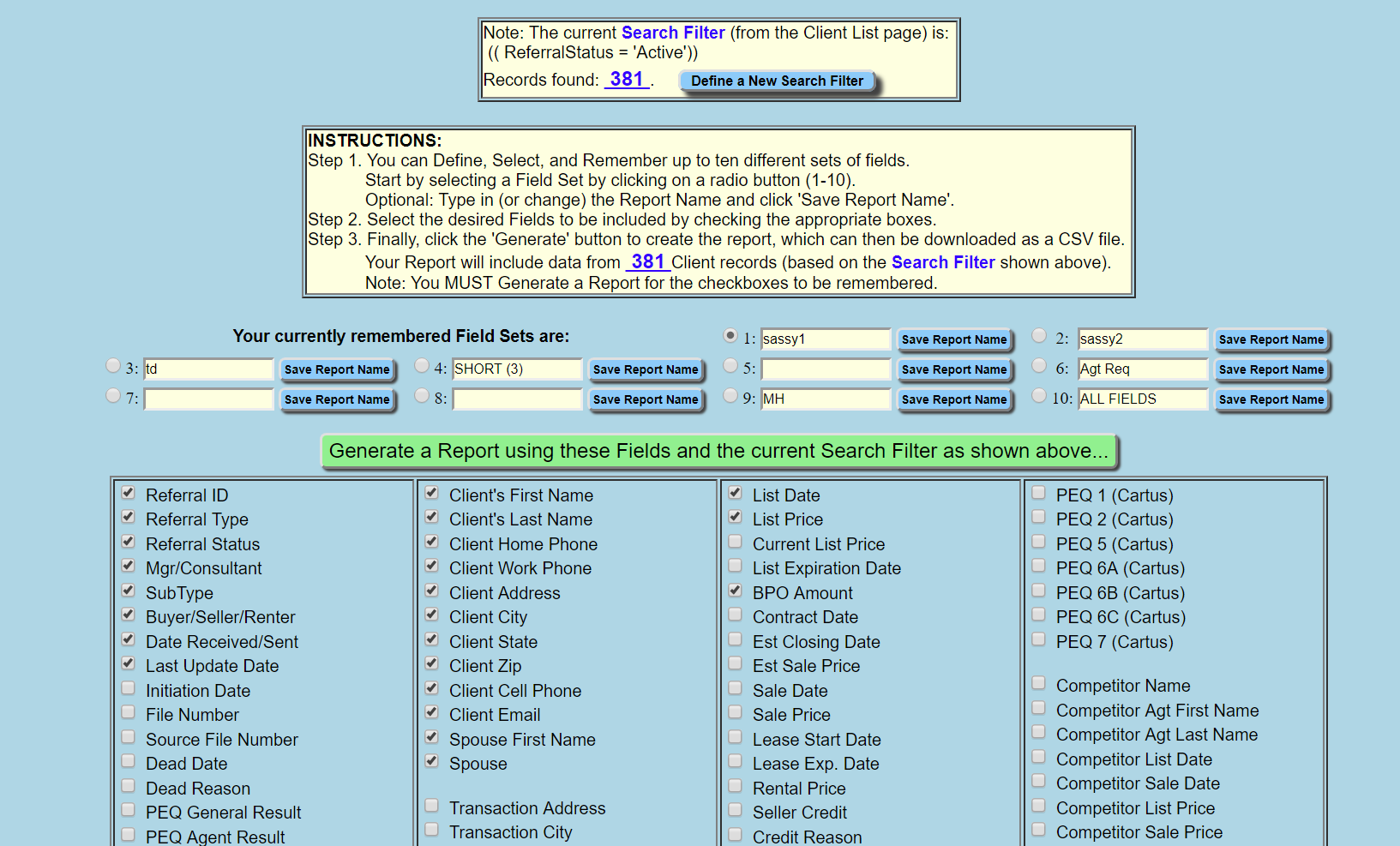
The Field Selection page now includes Search results at the top (number of records found), updated instructions for saving the field list selected and the ability to generate the report that may be downloaded.

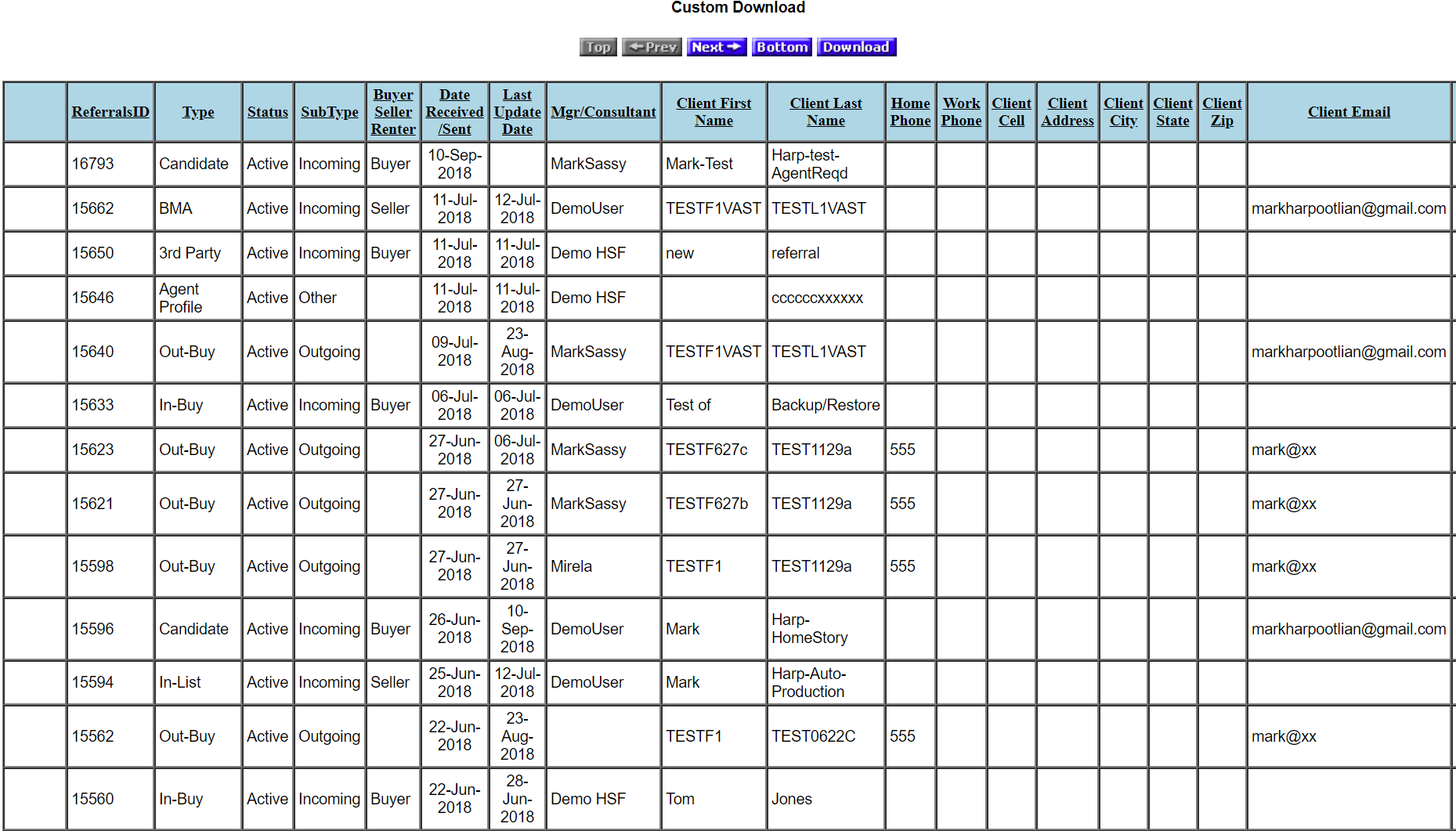
After searching for the records and selecting the fields, click the green button labeled “Generate a report using these fields…”.  That will display a grid with your filtered records and selected fields.  Here is a sample of the results:

Notice that this page will display just the first 25 of however many records were selected.  This is so we can display a sample report rapidly.  When you click the DOWNLOAD button to put the records into a spreadsheet, ALL the records will be included.

We apologize for the omission and hope it didn’t cause too much confusion.

Updated DOWNLOAD and Custom Financial Report

Over the last few weeks we have been responding to requests to make it easier to filter records used when using the DOWNLOAD button and when using the ‘Custom Financial Report’.

Want to get a fast, simple report?  Perhaps you want to drop the records you find into an Excel spreadsheet?  It’s as easy as 1, 2, 3.

  1. You always start with using the SEARCH button in the Client List page to filter the records.
  2. Click the DOWNLOAD button to open the field selection page where you can select which fields you want included.
  3. Click the DOWNLOAD button on the field selection page to insert the results into a spreadsheet.

If you were to start with clicking REPORTS, and select the ‘Custom Financial Report’ the process is the same.  Opening the report will take you to the field selection page.  If you have already used the SEARCH button in the Client List page to select the records, you’re set to DOWNLOAD.  If not, just return to the Client List page and follow the 3 easy steps shown above.

You may think of the DOWNLOAD button on the Client List page as a shortcut to the ‘Custom Financial Report’ since they now work the same way.

In addition, we have expanded the number of date fields used in the SEARCH page and included ‘Range’ links that allow you to use a pop-up calendar to select your Begin and End dates.  Here is what it now looks like:

All the date fields are located in the upper-right of the page.

The Field Selection page now includes Search results at the top (number of records found), updated instructions for saving the field list selected and the ability to generate the report that may be downloaded.

After searching for the records and selecting the fields, click DOWNLOAD on the Field Selection page to view the results:

Notice that this page will display just the first 25 of however many records were selected.  This is so we can display a sample report rapidly.  When you click the DOWNLOAD button to put the records into a spreadsheet, ALL the records will be included.


New ReloSpec version starts Monday

As was announced in the previous blog this week, the new Relocation Specialist (ReloSpec) version will be in production on Monday, July 2nd.  This new version is easier to use, a little better looking and the ADD NEW page will save lots of time when entering new referrals.

If you want a quick orientation to the new Client List page a 10-minute video is now available.  Click here to view the video.

Be sure to review the previous blog and the section on ‘Getting Ready for the new ReloSpec version’.  There are simple instructions there that will be important for using the new version, especially the importance of allowing pop-ups.

Thanks to all who helped with suggestions and encouragement.  We’re very excited to show off this latest version.

ReloSpec upgrade coming in July

Over the past few months, and with the help of those serving on the Customer Advisory Boards we have completed a significant upgrade for the ReloSpec software and plan to release the new version the week of July 2nd.  This upgraded Relocation Specialist (ReloSpec) version involves the Client List page as well as Action Plans, AutoPilot and other features.

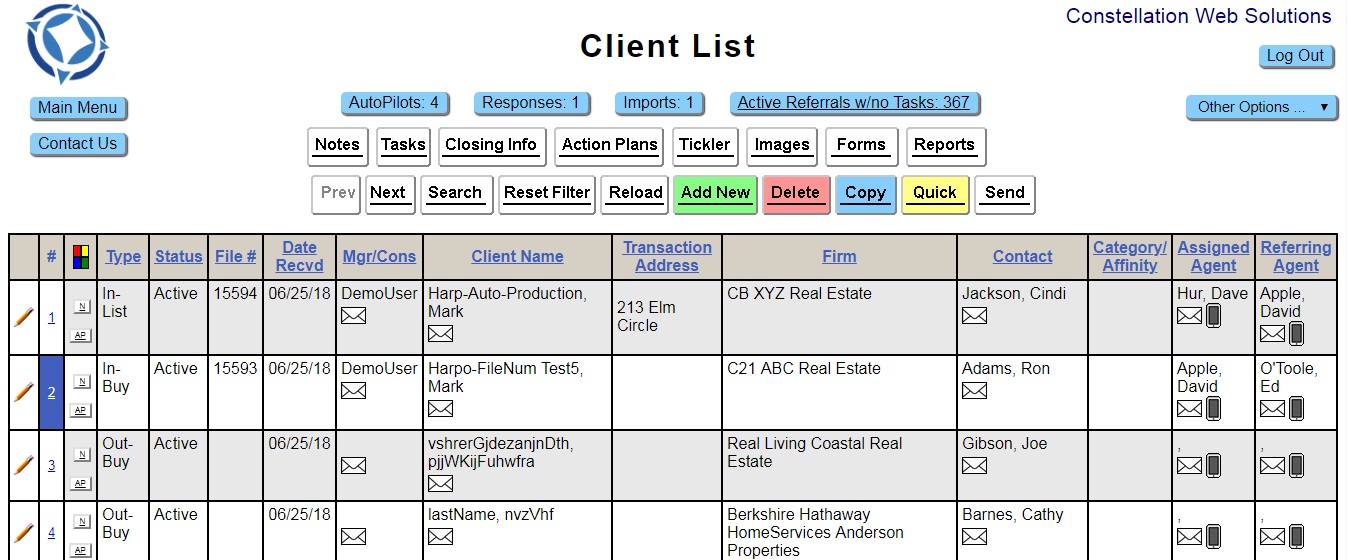
Beginning next week, when you login you’ll be taken to the new Client List page.  This upgraded page is cleaner, better organized and easier to use.  Most of the features you have been using with the ‘Classic’ version are still available and, many features such as SEARCH and EDIT (pencil) work the same.
This new version is what is currently known as the ‘Mobile’ mode version.  Those using the mobile version on their phones have found it much easier to use and suggested it be expanded to the desktop version.  After reviewing with many current ReloSpec users we have completed the upgrades and are introducing the mobile version as the upgrade with expanded capabilities.

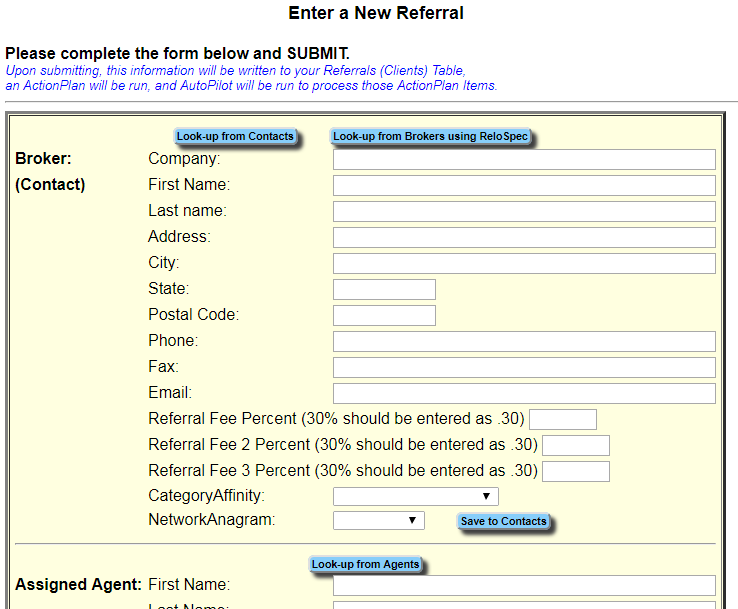
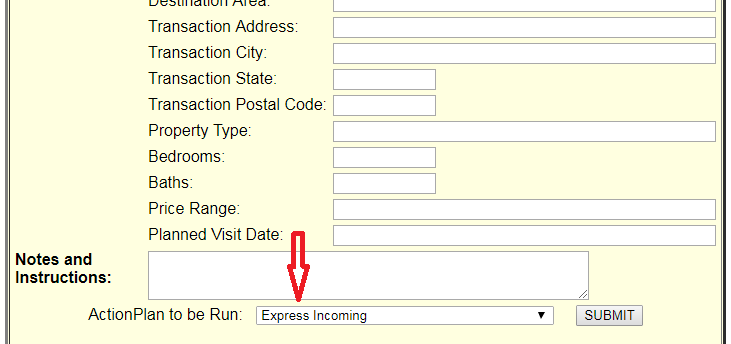
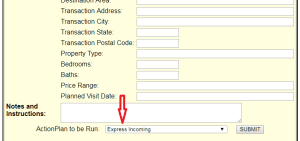
Included with the new version is an enhanced ADD NEW page that includes a droplist to select the Action Plan (collection of predetermined Tasks) to be run.  The Tasks are scheduled and any AutoPilots due to go out right away are automatically sent.  Just fill-in the form with what you know, select the Action Plan and SUBMIT.  The rest is done for you!

To have the automatic Action Plans feature enabled, be sure #3 in the ‘Getting Ready’ section below has been completed.

For a short time, those who want to use the ‘Classic’ version (the one you’re using today) may do so by checking the ‘Classic Display?’ checkbox on the Login page prior to logging in.

For those who want to get a preview or want to begin using the new version, click the ‘Mobile?’ checkbox on the login page prior to clicking LOGIN.

This is one of the most significant changes to ReloSpec in years.  We appreciate all the many suggestions and helps we received from our wonderful ReloSpec friends and associates.

Getting ready for the new ReloSpec version

Checklist to get ready for the new ReloSpec version.

Many of you will already have each of these items in place and there will be nothing to do to get ready.  However, to get the most out of the new version, please take a minute to be sure each of the following items are completed.

  1. Company logo  Your company logo will appear on the Client List page in the upper-left corner.  This logo will be included on outgoing FORMS and should be as square-shaped as possible.  If it is not displayed, return to the Main Menu page, click SETTINGS, then click ‘Upload Logo’ and follow the prompts.
  2. Company name  Your company name should appear in the upper-right of the Client List page.  It is setup in the Users table and is used along with your Email Signature with outgoing emails.  If not displayed, return to the Main Menu page, click SETTINGS, USERS, click the pencil for your name, make the needed changes and click UPDATE CURRENT RECORD.
  3. Allow pop-ups  One of the newer features is the ADD NEW form.  It includes a droplist for selecting the Action Plan you want to use then schedules the Tasks and sends any AutoPilots that are due to go out immediately.  All with one click!  For ReloSpec to schedule and send the AutoPilots your browser must allow pop-ups for ReloSpecCloud.com.  Use the settings feature of your browser to make the change, if needed.
    1. For Chrome, click SETTINGS, Advanced, Content Settings, Popups, Allow, ADD, then enter “www.ReloSpecCloud.com” and click ADD
    2. For IE, click the gear for SETTINGS, click the Privacy tab, in Pop-up Blocker click SETTINGS, in Exceptions enter “www.ReloSpecCloud” and click ADD
  4. Have at least one ‘Referral Source’  When clicking the ADD NEW button to start a new referral, ReloSpec attempts to build the droplist for the Referral Source.  If you don’t already have at least one entered a yellow warning box appears at the top of the page.  To avoid the warning (if it appears) do the following: Return to the Main Menu page, click SETTINGS, click ‘Referral Sources’ and enter “sample” and click ADD NEW RECORD.


Frequently Asked Questions:

Do I have to download anything to use the new version?

No.  Since ReloSpec is web-based, just login and you’ll have the latest version.

Can I still use the old (Classic) version?

Yes.  For a limited time the classic version will remain available.  From the Main Menu page click the checkbox for ‘Classic Display?’ and you’ll use the classic version.

Where are the links that were on the left side of the page?

The links have been moved to either the top of the page or are included in the ‘Other Options’ droplist.

Can I edit fields not included in the ADD NEW page?

Yes.  After adding a new record it will appear in the Client List page.  Click the pencil to edit any of the fields.

Are the Notes and Tasks still displayed below the grid?

Yes.  The grid now contains a maximum of 10 records and the Notes and Tasks are still displayed below the grid for the selected record.

What does the ‘Quick’ button do?

Once you have selected a record in the AutoPilot, the Responses or the Tickler page, minimize the page and click the ‘Quick’ button to instantly select the corresponding record.  Say you’re looking at an AutoPilot item and you want to see the Notes for that record.  Click the ‘Quick’ button and view the one record with the Notes displayed below the grid.  Quick and easy!  Click ‘Cancel Quick’ to return to the normal display.

What does the Action Plan droplist do in the ADD NEW page?

By selecting the Action Plan in the droplist, when you click SUBMIT, the Action Plan Items are scheduled and any AutoPilots that are due will be sent.  All with one click.  If you complete the form are not ready to select an Action Plan, click the droplist and select the blank area before clicking SUBMIT.  The record will be saved but no Action Plan will be run.

Can I run an Action Plan on an existing record?

At any time you can select the record in the Client List page, click the ‘Action Plans’ button to open the page, select the one you want and click the button to schedule the Items.

Will there be more upgrades coming?

Yes.  Many new features are planned for ReloSpec.  Menu bars will be added plus the ability to view all details (ie. Notes, Tasks, Closing Info) in accordion style in the Client List page.  Integration with other services such as websites and other software as well as simplified forms and reports are in the planning stages now.